On a B2B portal, a dealer filling the cart is often not the final step of the order. In the dealer's mind, the cart is still a draft. They want to show it to their customer, get it approved by a partner, or pass it on to their accountant. If your portal does not support this in-between step, the dealer takes a screenshot, types the products into Excel one by one, or calls you to ask, "Can you send me a quote?" Being able to download the cart as a PDF solves this small but frequent problem.
Why Is the Cart Shared Before the Order?
In consumer shopping, the person filling the cart is usually the one making the decision. In B2B, things are different. The products in a dealer's cart often await someone else's approval. That person might be the dealer's own customer, a business partner, a purchasing manager, or an accountant.
A cart PDF presents the products in the cart, quantities, dealer-specific prices, and the total amount as a neatly organized document. The dealer sends it by email or WhatsApp and runs the decision process on their end. Once approval comes in, they complete the order on the portal.
Scenario 1: The Dealer Quotes Their Own Customer
Many dealers sell the products they buy for a project or to their own customers. For example, a building materials dealer adds the products a contractor needs to the cart. The contractor wants to see the list first. The dealer downloads the cart as a PDF, shares it with the customer, and, if needed, updates the quantities after discussing it.
The same thing happens when an electrical supplies dealer prepares a materials list for a construction site, or when a furniture dealer selects products for a hotel project. The list is finalized after a few rounds of discussion with the customer.
In this scenario, keep in mind that the dealer may not want to show their price to their own customer as is. That is why it is important to consider what information the PDF contains based on the dealer's needs. If the dealer needs to add their own profit margin when preparing a quote, downloading the cart as an Excel file is a more flexible option.
Scenario 2: Getting Internal Approval
At mid-sized and large dealers, the person who places the order and the person who approves the payment are usually different. The purchasing manager prepares the cart, and the owner or manager approves it. A cart PDF speeds up this internal approval process. The approver does not need to log in to the portal; they look at the document and say yes or no.

This approach is especially useful for high-value or periodic bulk orders. The approved document also answers the question "Who approved this order?" later on.
A similar need arises at dealers with multiple branches. Each branch manager adds their own needs to the cart, and a manager at headquarters reviews the list for all branches and makes the call. A cart PDF makes it easier to discuss these scattered requests through a single document. Items that are not approved are removed from the cart, and the remaining order is completed on the portal.
Scenario 3: Sending It to Accounting and Purchasing
Some dealers run a budget check before placing an order. The accounting team wants to see which products will be purchased and for how much. A cart PDF or Excel file makes this check easier. The accountant compares the document against the budget or payment plan in their own system.
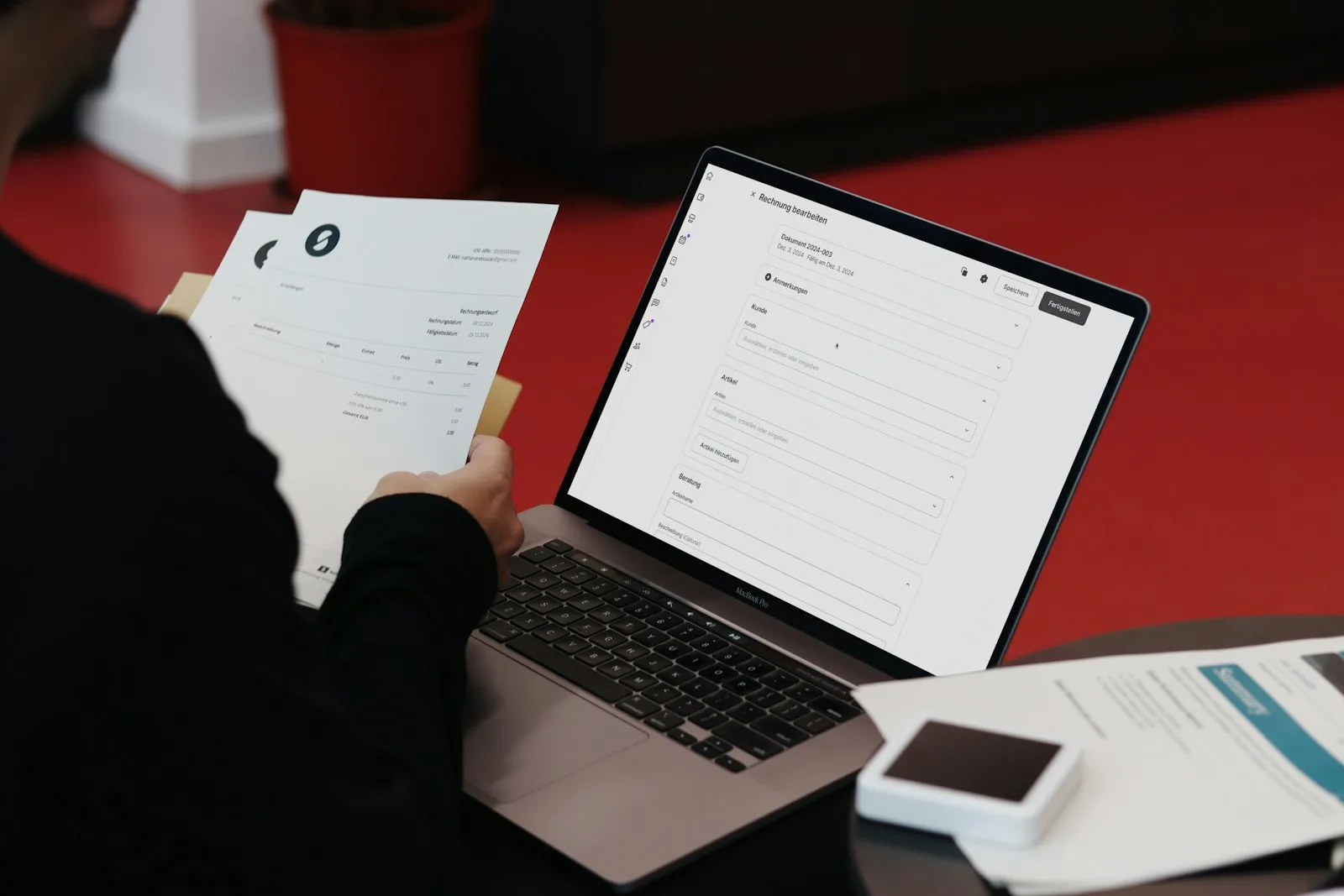
Which format the cart should be downloaded in depends on how it will be used:
| Situation | Best format |
|---|---|
| Showing it to a customer or manager | |
| Keeping it as an approval record | |
| Adding a margin on top of the price and reworking it | Excel |
| Importing it into an accounting or budget spreadsheet | Excel |
What Does This Feature Do for You?
Although the cart download feature seems aimed at dealers, it saves the most time for your sales team. There are fewer cases where a dealer calls or emails to ask for a quote. In addition:
- The dealer makes a quick decision on their end and completes the order on the portal.
- Products left in the cart are not lost; once approval comes in, the same cart turns into an order.
- Your sales rep can focus on new customers instead of preparing routine quotes.
- The dealer's habit of using the portal grows stronger, because they do not have to take their work outside of it.
What Should a Good Cart PDF Include?
For the document to be useful, it needs to clearly contain enough information for the dealer to make a decision. As a checklist, we can list the following:
- Product name, product code, and product image if available
- Quantity and unit
- Unit price, applied discount, and line total
- Subtotal, tax, and grand total
- The date the document was created
- Your company logo and contact details
The date is especially important. Since prices and stock levels can change, knowing which day the dealer's document refers to prevents later disputes along the lines of "But the PDF showed a different price." If a firm, binding price is required, it is better to prepare a formal quote with an approval workflow instead of a cart PDF.
For other ways to improve the dealer experience, take a look at our article 7 Ways to Increase Dealer Satisfaction.
In Multistok, the ability to download the cart as a PDF or Excel file is included in the Multibusiness plan. The same plan also includes features that support the quoting process, such as system quotes and dealer request management. For details, see our plans page.
Conclusion
In B2B, the cart is a draft that passes through several hands before it becomes an order. Giving your dealers the ability to share that draft as a PDF or Excel file speeds up the decision process and frees your sales team from routine quoting. If you would like to see how this workflow would work in your dealer structure, you can request a Multistok demo.